Getting started to Windows Terminal
Configurando um ambiente de terminal moderno, produtivo e customizado com múltiplos perfis, atalhos, fontes e temas.


Following Scott Hanselman’s last blog post titled: It’s time for you to install Windows Terminal, and after several weeks i just changed my main command line interpreter from Cmder to Windows Terminal, and it just feels great! Here below, I will show a bunch of links that could help your setup.
Here are some cool features, that recently came to terminal:
- Split Panes (Use cmd, powershell and wsl together in the same tab)
- Reordering Tabs
- Command line arguments
- Configuration as code (You could change some settings and see live, how it looks)
- And the most **c̵o̵o̵l̵ **important one, gifs in the background of terminal
You can download the terminal from Windows Store and Github Release Page
The Windows Terminal configuration is based on json file, called profiles.json, similar to VSCode configuration file. Here are the the documentation, but if you are more familiar with examples, you can look below my settings file.
Note: to the font family, i’m using Cascadia Code, a new font create by Microsoft that you can download here
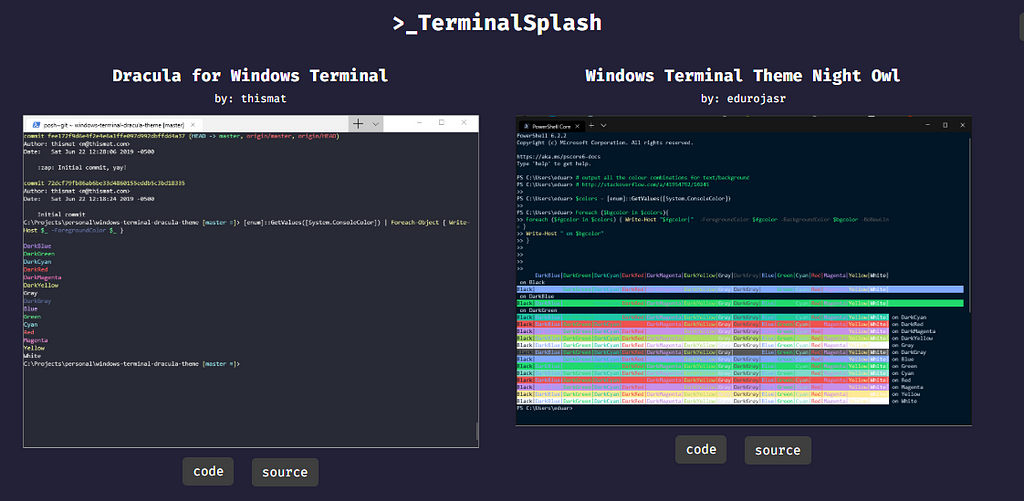
https://medium.com/media/882c70296d66a870ac337d3786f20314/hrefIf you’re looking for cool themes, you could search one from them at TerminalSplash
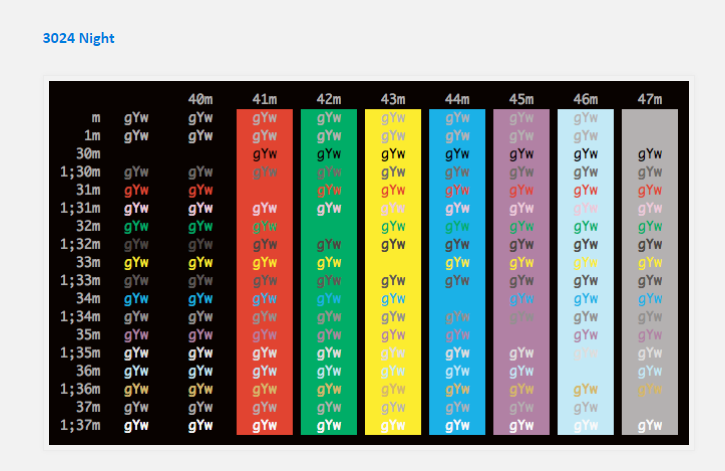
But if you’re more familiar with iTerm themes, here are a big number the them, but if you don’t know how that looks, you could look here
Please share your thoughts with the new terminal here, what are you missing to migrate yet? Thanks!
Gustavo Miranda
Software Engineer @ Uber • ex @CI&T • @gstvribs
Global-Scale Software Engineering & Platform Architecture